Over 10 years we help companies reach their financial and branding goals. Engitech is a values-driven technology agency dedicated.

Gallery

Contacts

411 University St, Seattle, USA

engitech@oceanthemes.net

+1 -800-456-478-23

Aspire - A Perfect POS System

A point of sale system is a solution that combines software and hardware to centralize and manage all of a retail store’s commercial operations. POS systems can assist merchants in managing all orders, sales operations, inventory, workers and marketing efforts.

The point of sale, also often referred to as the point of purchase, is the time and location where a retail transaction is completed. At the point of sale, the merchant calculates the amount owed by the consumer, displays that amount, may produce an invoice for the client, and displays the customer’s payment options.


Aspire POS – A complete point-of-sale system that works on a wide range of platforms. Aspire is a perfect POS System that supports multiple devices like iOS & Android Mobile, desktops & tablets. Aspire offers simple solutions that automate much of the workload, from basic customer purchases to managing inventory. A POS would be configured differently depending on whether you sell at a physical store, online or both. Merchants may open their first retail store and acquire goods through the POS admin using the Website and Mobile app.

The entities provided by Aspire POS are listed below.

  • User Website
  • Web POS
  • User Application
  • Driver Application
  • iOS POS
  • Super Admin
  • Owner Admin
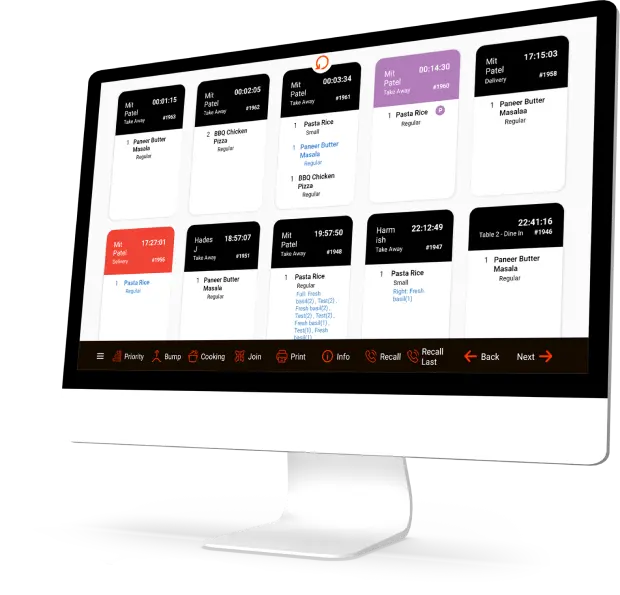
  • Kitchen Display System
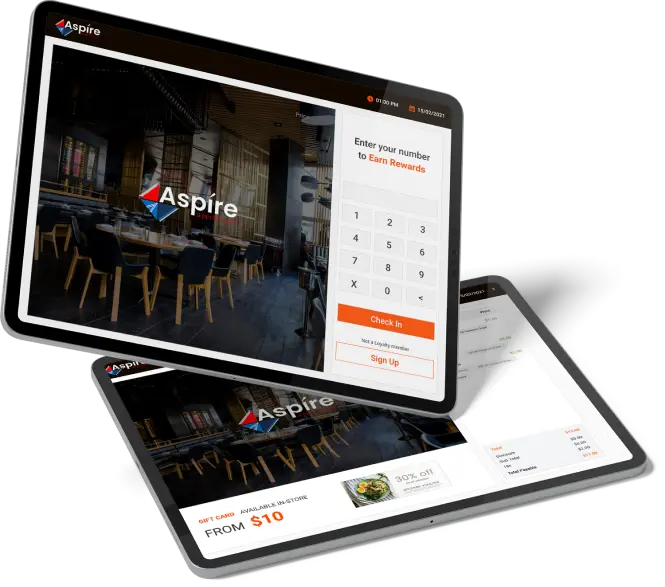
  • Customer Display System
  • Hardware Integration

User Website

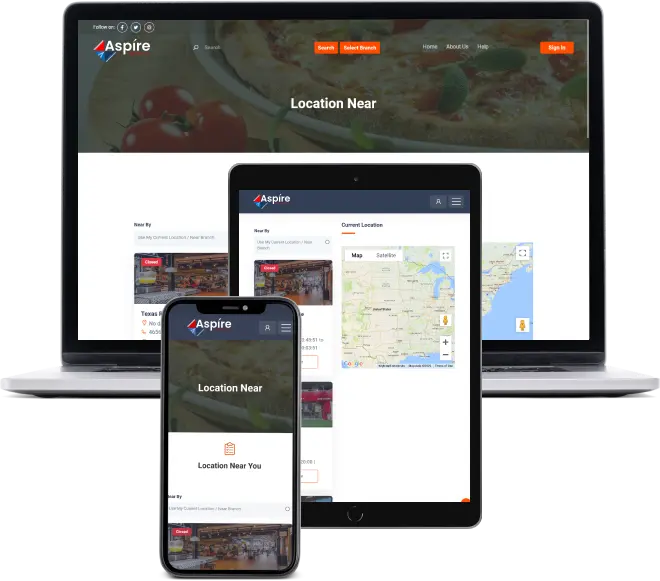
Near Location

On the website customers first need to allow the current location based on that restaurant branch list shown. For example, the first branch shows top as  per customer location if the branch is available for that restaurant.

Once you enter the home page after the selection of branches here you can check the website. But if you want to place an order you must need to login into the website. Now if you are not a customer of a particular restaurant, you must need to Register yourself with a manual process as well as via social logins like Facebook or Google+.

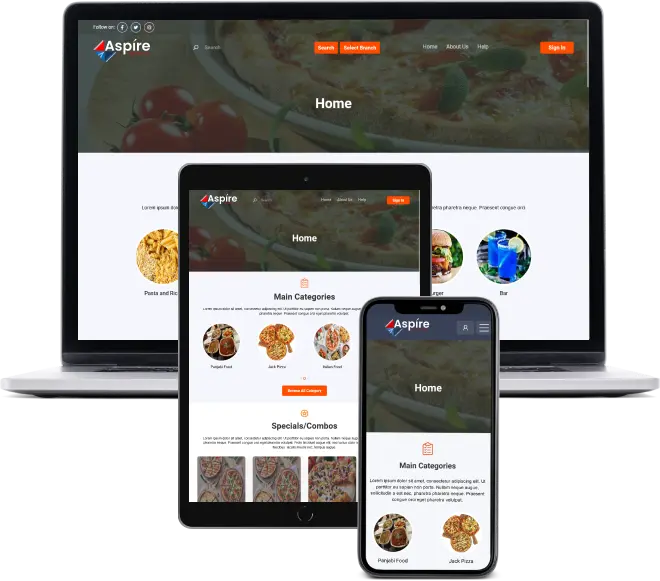
Home

The home page of the website displays the categories, sub-categories, favourite items, top products, table reservations, user’s total gift cards, aspire’s offers and other information. From the Search bar, a user can search for their favourite food with categories, sub-categories and menu names.

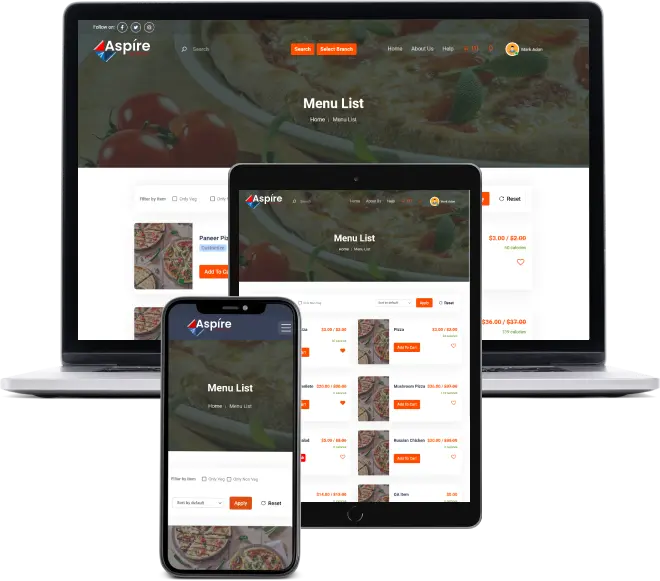
Menu List

Users can explore the menu list by selecting the main category and sub-category after that the user will be able to view the item list & can shortlist the item with given filters.

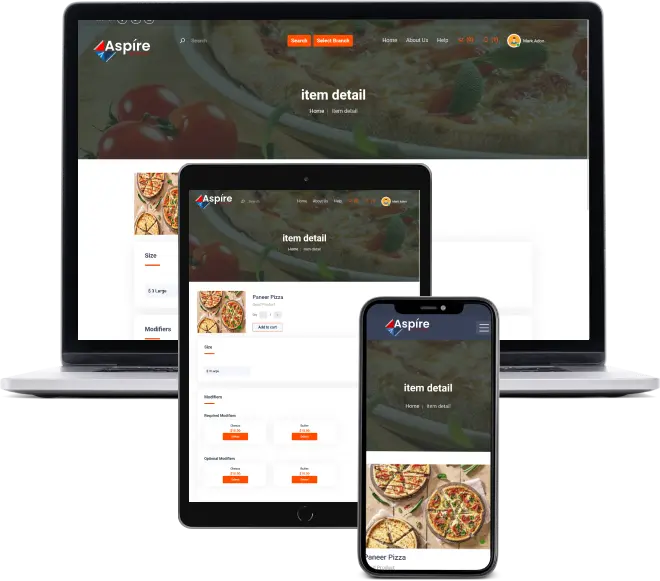
Item Details

The selected items are visible in the item details. The user can customize the item details such as quality, size and modifiers. After that, the item can be added to the cart.

Cart

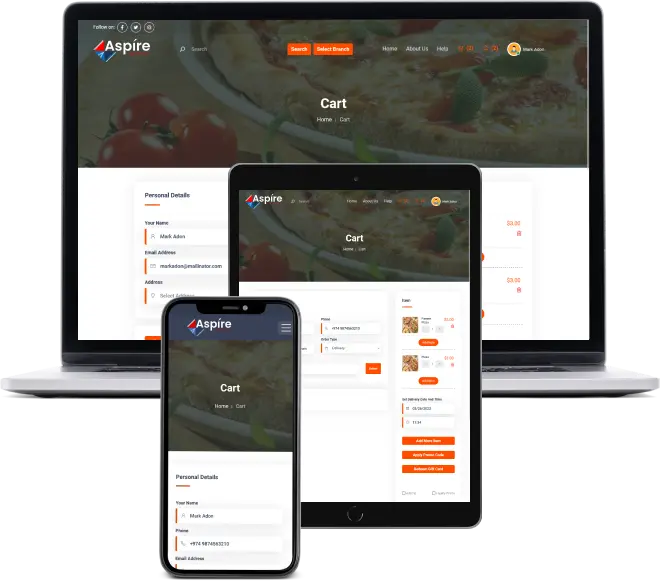
Users can view their order details by using the cart option. This module allows to add users personal information, and then users can select order types such as delivery or pickup. Other than this, users can add the item-wise note and global note and can add the tip amount. Lastly, the user concludes the order by applying the offer codes and completing the order with payment details.

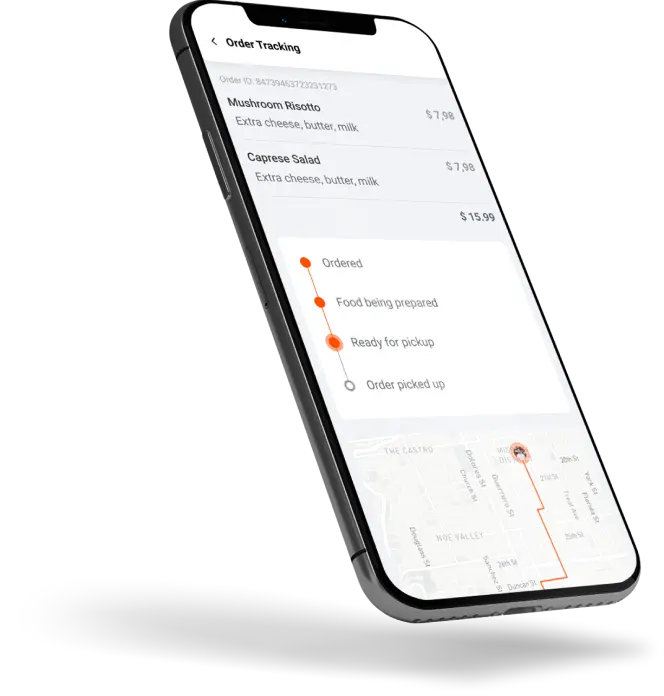
Order Tracking

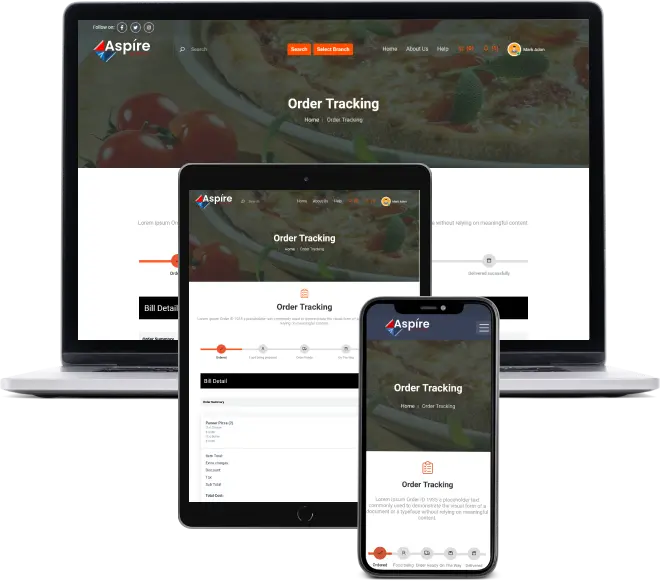
After placing an order, the user can see the order status, as well as order detail & the user, can track their order.

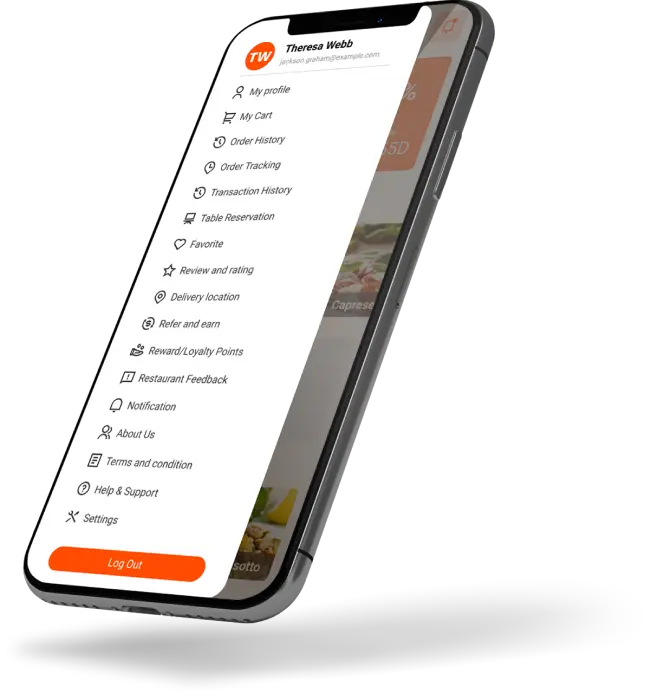
User Panel

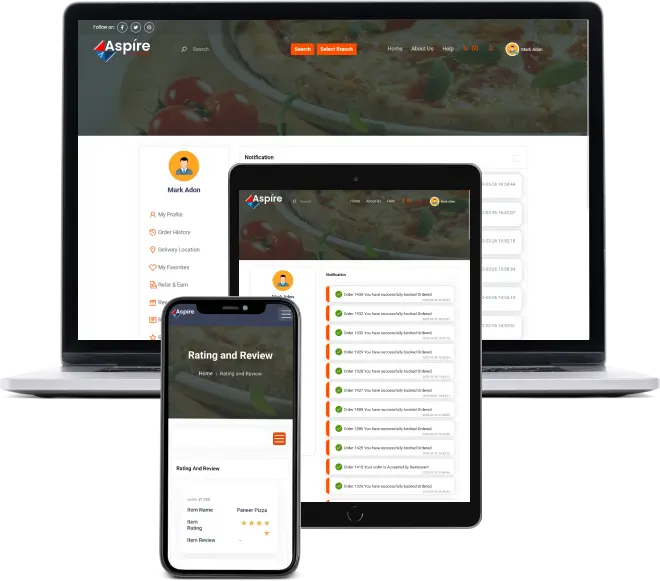
In this panel, the user’s profile can be viewed ( My Profile ). This module keeps track of the other modules listed below:

  • Order History
  • Delivery Location
  • My Favourites
  • Refer & Earn
  • Reward / Loyalty Points
  • Restaurant Feedback
  • Rating And Reviews
  • Notification
  • Gift Card
  • Table Reservation

Web POS

Welcome to the Web POS

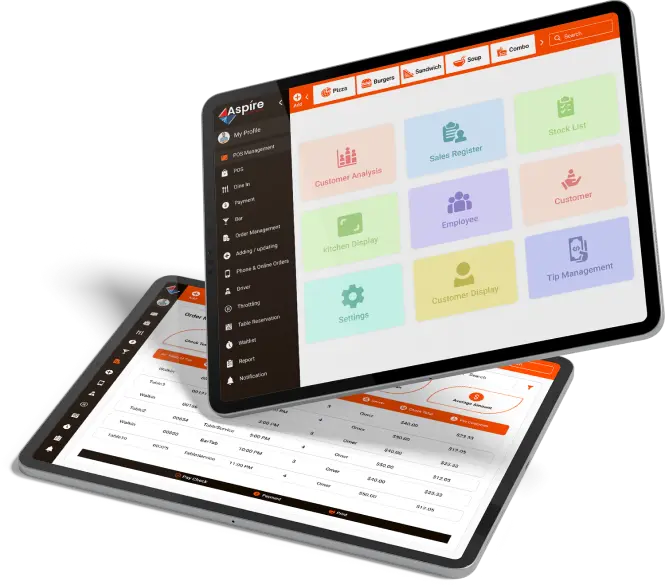
Dashboard

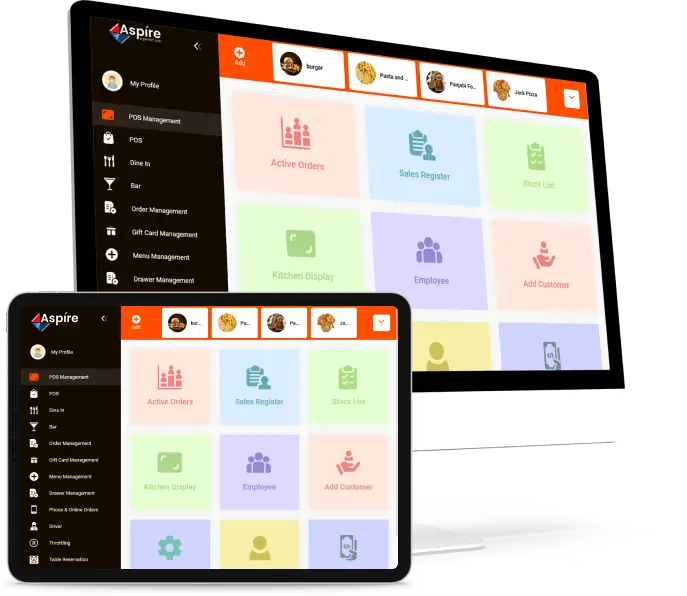
Web POS dashboard displayed the Active orders, Sales Registration, total amount of Stock, kitchen activities in Kitchen Display, Total Employees, Customer added option & total Customers, Tip Management.

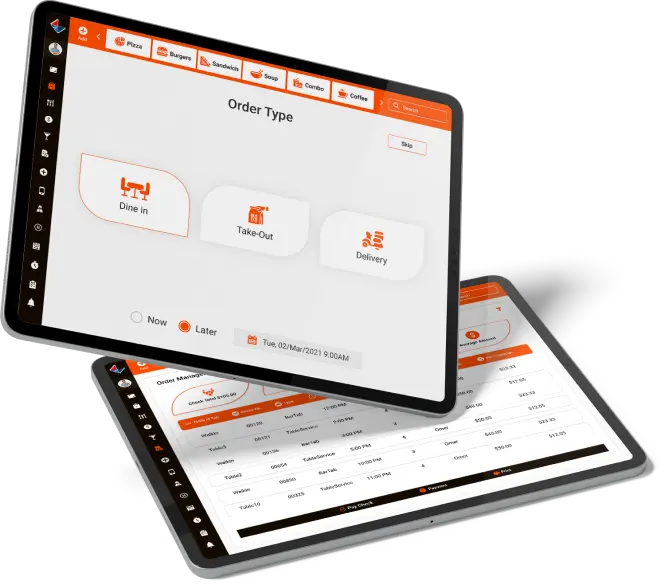
Order Type

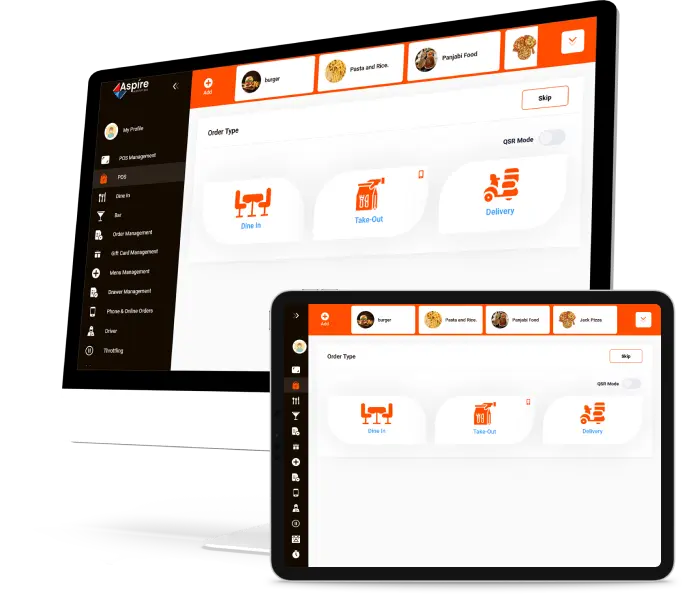
Order type is a module that allows restaurants staff to manage orders classified as Dine-in, Take-out, Delivery, Bar and QSR.

  • Dine-in: Customers are those who have reserved a table in the restaurant.
  • Take-out: refers to the customer who has made an order for take-out.
  • Customers who have ordered items that will be delivered to their location can be found in the Delivery section.
  • The Bar section: displays customer details who have made reservations at the bars.
  • QSR: a specific type of restaurant that serves fast food quickly and has minimum takeaway & service.

Menu List

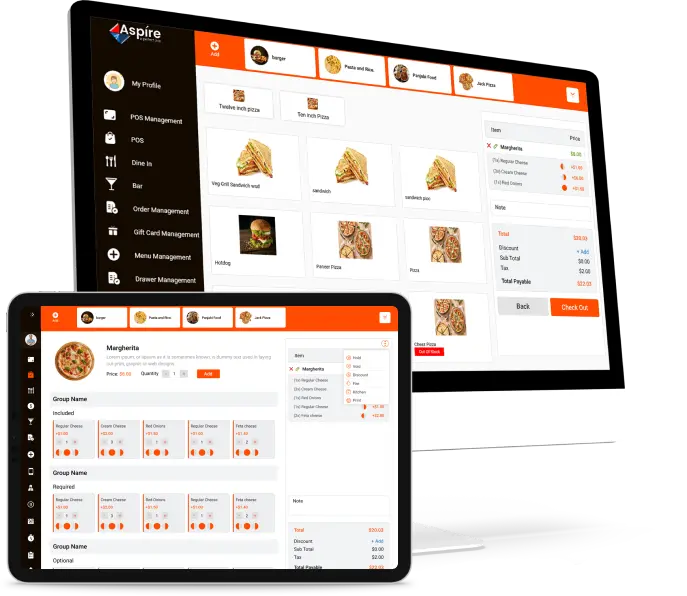
The Menu list will be displayed to the staff after they have selected their order type. If any items are going to be out of stock, the out-of-stock icon will be highlighted so that restaurant personnel can get awareness of the stock.

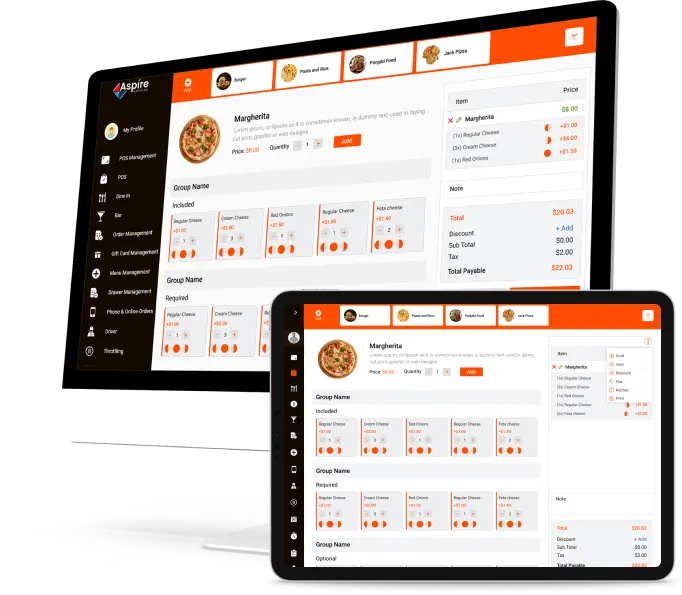
Add Modifier

In addition, in this module, staffs can add the customer, choose the order type and leave a note for the ordered item & signifies the order status like Hold, Void, Discount, Fire, Kitchen and Print & finalize the order by checkout button.

Sales Registration

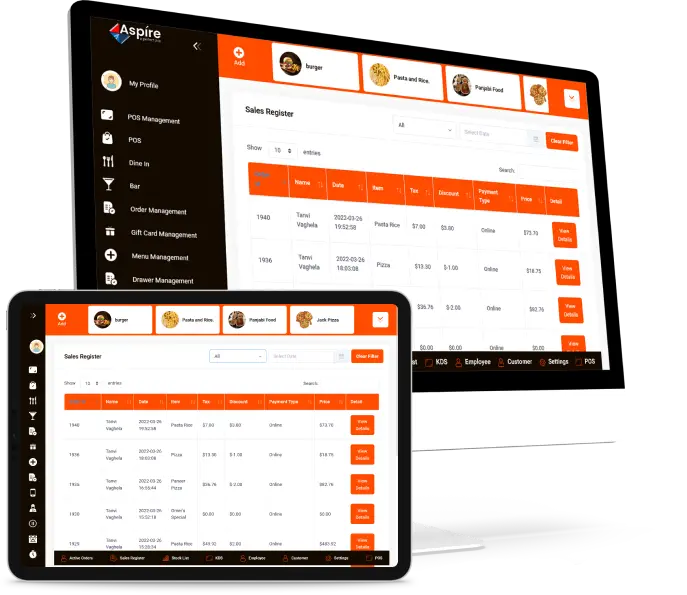
The Sales Registration displays the specifics of an item’s sales record.
This module keeps track of the overall sales has been done in the restaurant. The manager can view sales records after selecting a period by using the filter option.

Kitchen Display

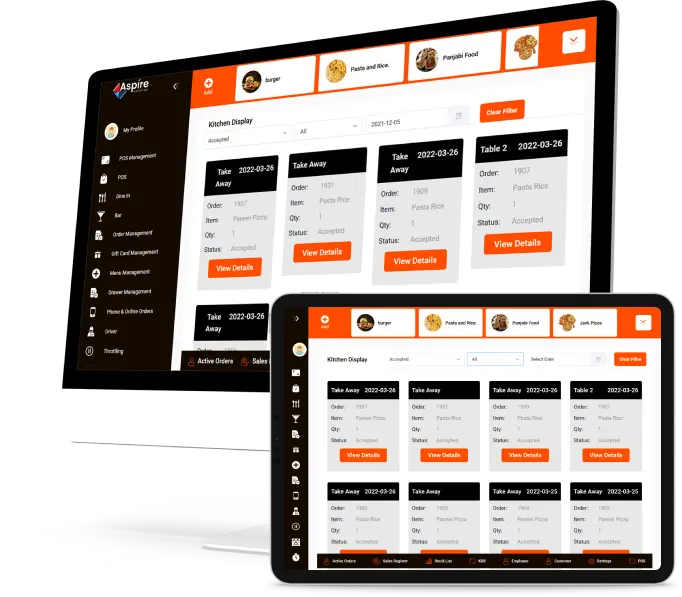
The kitchen display is developed for restaurant staff. The customer’s active order information can be shown on the Kitchen Display, which also includes the items ordered by the customer and taken by staff with order ID, order type and the total amount of the order. Other order related details can be seen in the view detail section. If the order is not accepted, is in progress, is ready, if the timer runs out, the kitchen employee will indicate the order status with a different colour.

Employee

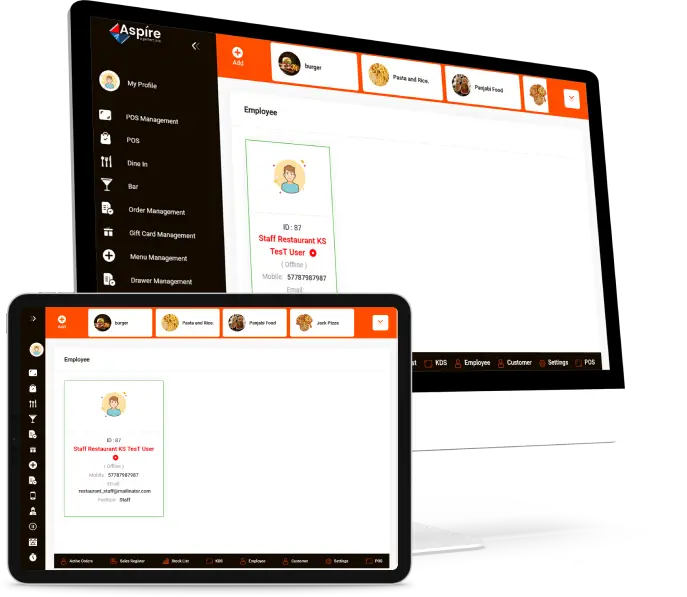
Restaurants existing employee lists & records with each detail are shown in the Employee section. While the manager’s access shows the overall employee details & so on. The other employee’s access shows his/her details.

Tip Management

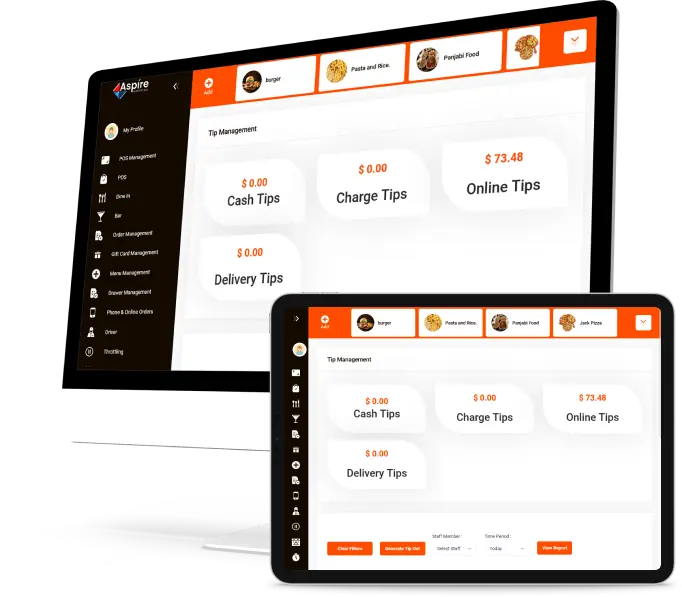
If any existing employee received any kind of Tips from customers shown here. Tip management collects tips from all employees, and tips received on any type of service will be dispersed to all employees according to their performance.

Order Management

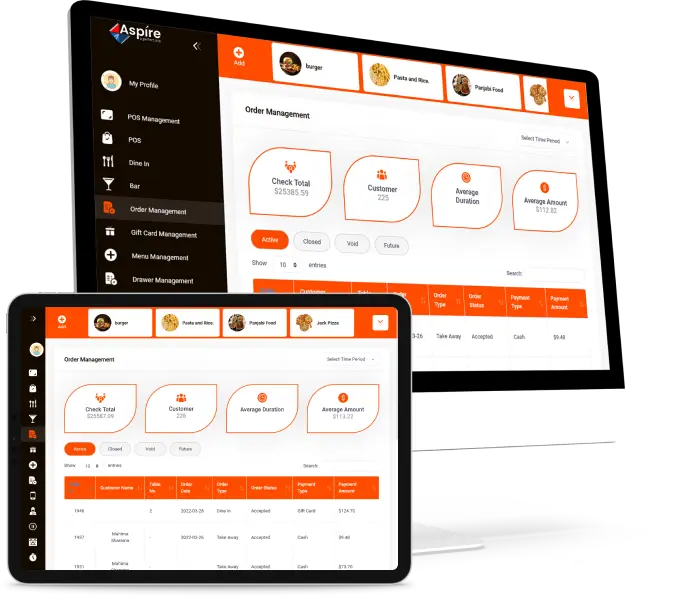
This module displays order details whether it is Active, Closed, Void or is in Future. Staff can see the overall earnings of the day, total customers, average duration & average amount.

Gift Card

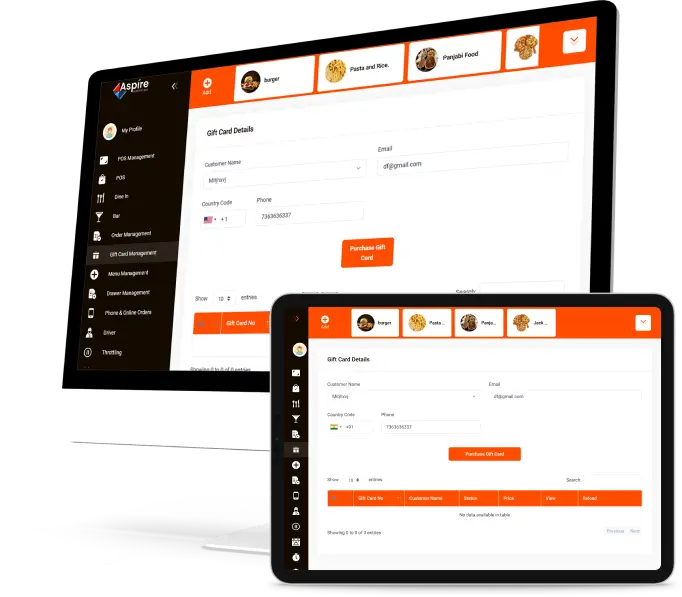
Staff can sell gift cards to the customers simply by adding customer detail. This module also shows how many coupons & cards are received by customers.

Table Reservations

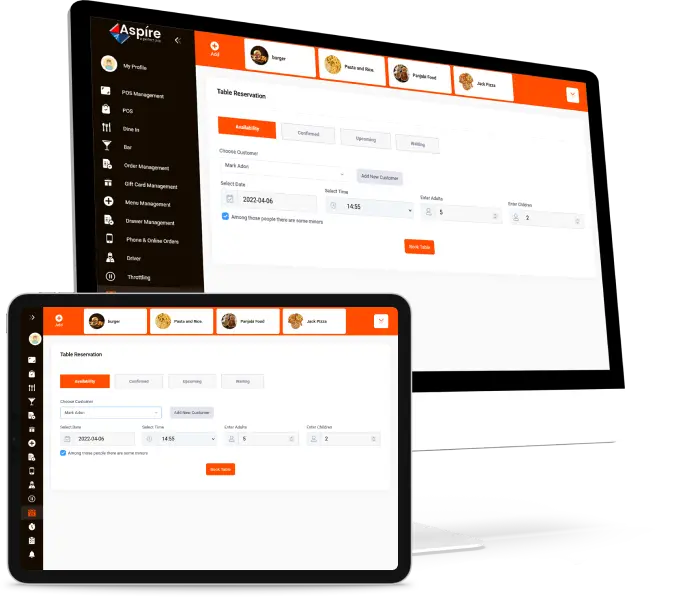
With web pos, users have the finest option for reserving a table at their favourite restaurant.
Users can book a table based on when they want to visit, what time they want to go, and the total number of people at the restaurant.
By clicking on ‘Book Table’ the user’s table will be reserved with their name. After that, the user can see the reserved table status & has an option if they want to cancel a booking.

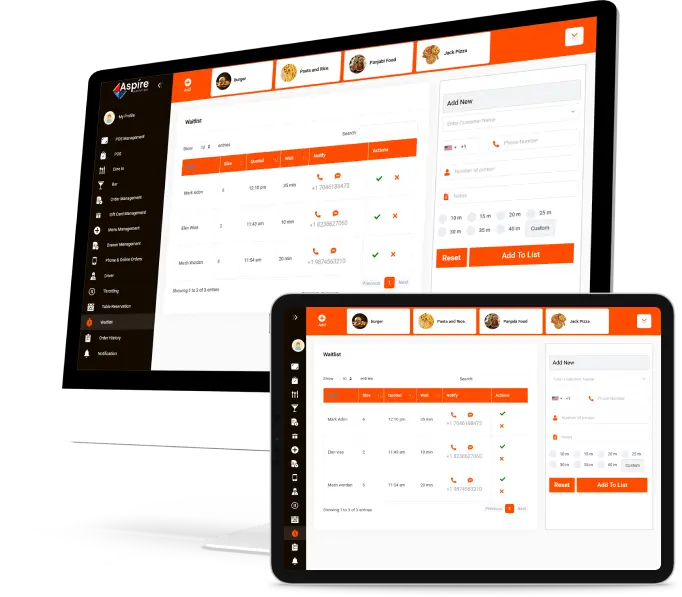
Wait List

If a customer is waiting for a restaurant table, they can directly connect with the restaurant staff, and the restaurant staff will update the confirmation into the given contact information via SMS and phone.

Other Functionalities

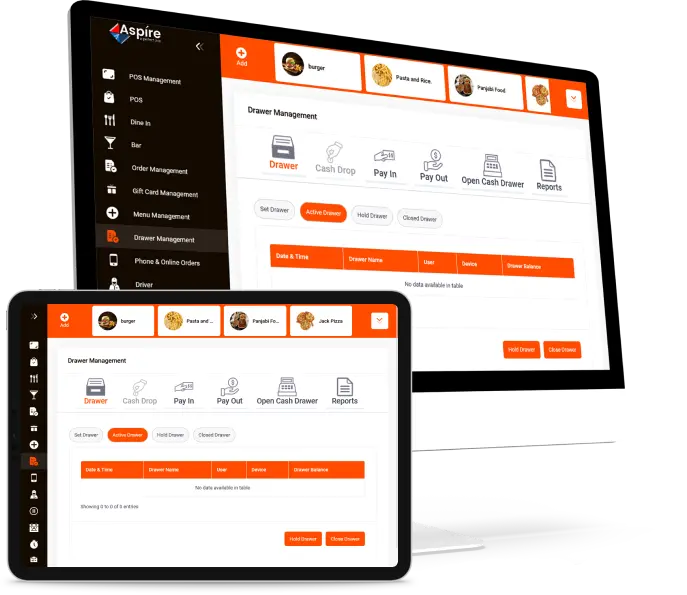
  • Drawer Management
  • Cash Drop
  • Pay In/Out
  • Open Cash Drawer
  • Throttling
  • Reports

User Application

This application is compatible with both iOS and Android devices

Home

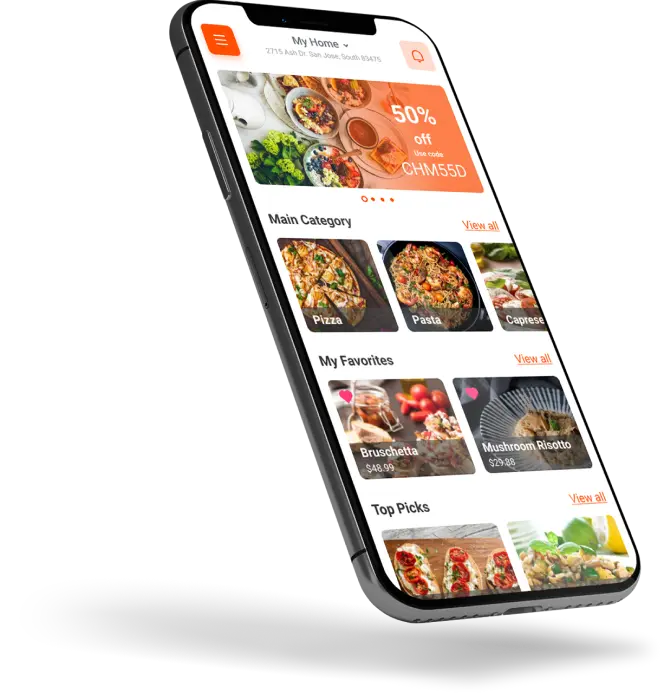
The application’s home page displays advertisement, categories, sub-categories, favourite things, top products, meal reservations, total gift cards, aspire deals, and other information. A user can search for their favourite food items using categories, sub-categories and menu names in the search bar.

Menu List

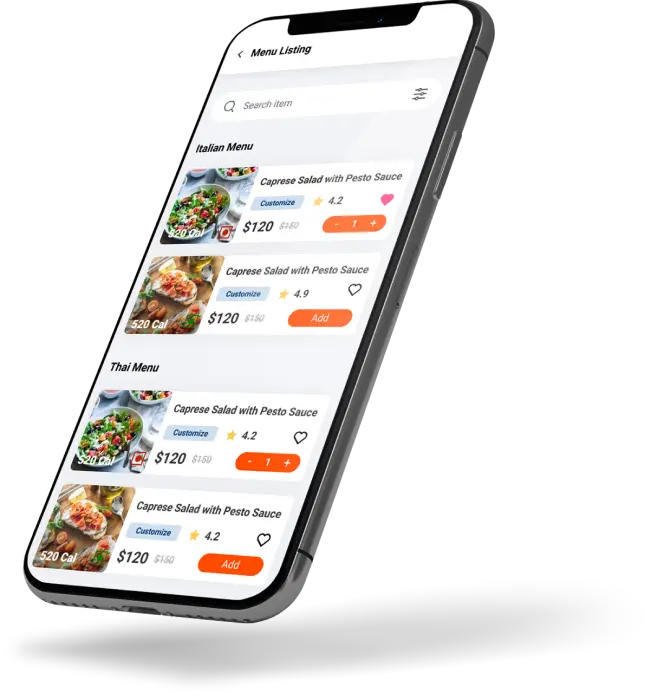
Users can explore the menu list by selecting the main category and sub-category. The user will then be able to see the item list and shortlist the item using the provided filters.

Customize Order

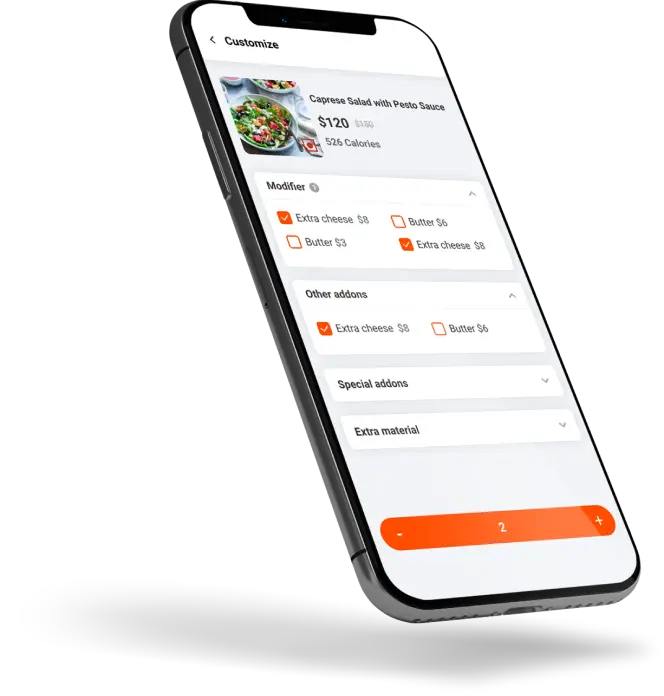
Customize module allows users to add on the extra popping into the ordered item. Users can personalize their orders by adding modifiers, other add-ons, special add-ons, and extra material as needed.

Cart

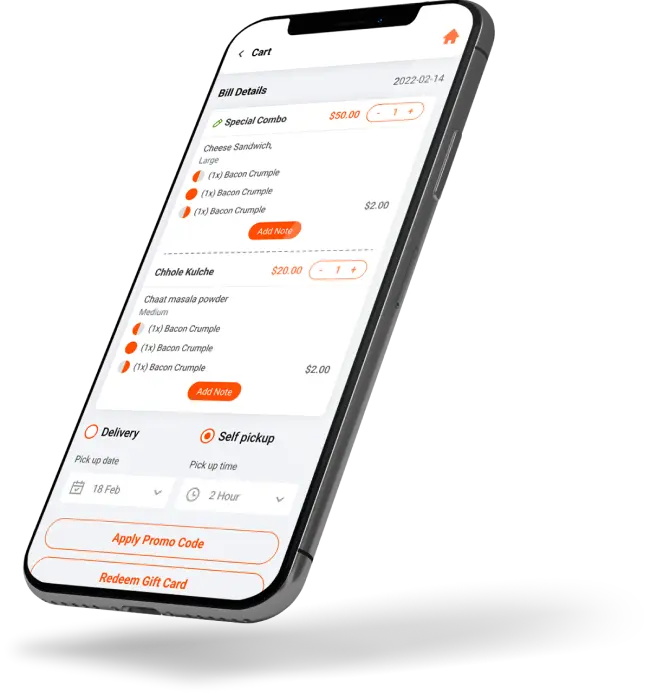
The cart option allows users to view their order data. This module allows users to enter their personal information and then select order kinds such as delivery or pickup. Aside from that, users can add an item-specific note, a global note and a tip amount. Finally, the user completes the order by applying the offer codes and entering payment information.

Order Tracking

After placing an order, the user can view the order status and order details, as well as monitor their order.

Other Functionalities

From the dashboard, the user can see, add or remove his/her table reservation details.
  • Users can order the food item from the user application & the other process will remain the same as the website.
  • A wishlist contains information about any item from Favorite.
  • Coupons or offers shown in Gift Card.
  • By referencing the application, the user gets the reward points from Refer & Earn.
  • Saved rewarded points listed in Reward / Loyalty points.
  • Users can add any Feedback for Restaurants or their food items.

Driver Application

This application is compatible with both iOS and Android devices

Login

After placing an order, the user can see the order status, as well as order detail & the user, can track their order.

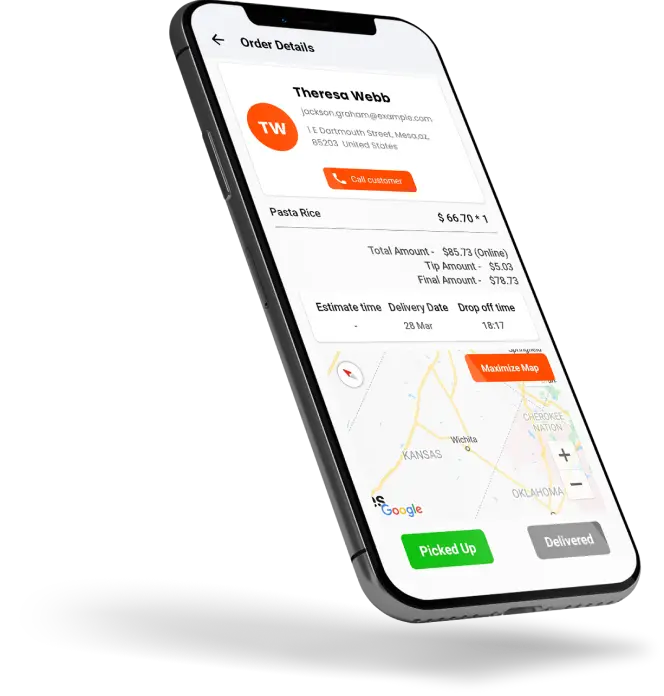
Order Details

This driver application has been created primarily for drivers. The drivers receive all information regarding orders and restaurants with this single application.

After login, the driver can see the order details such as; the customer’s order details with the call customer button & delivery time.

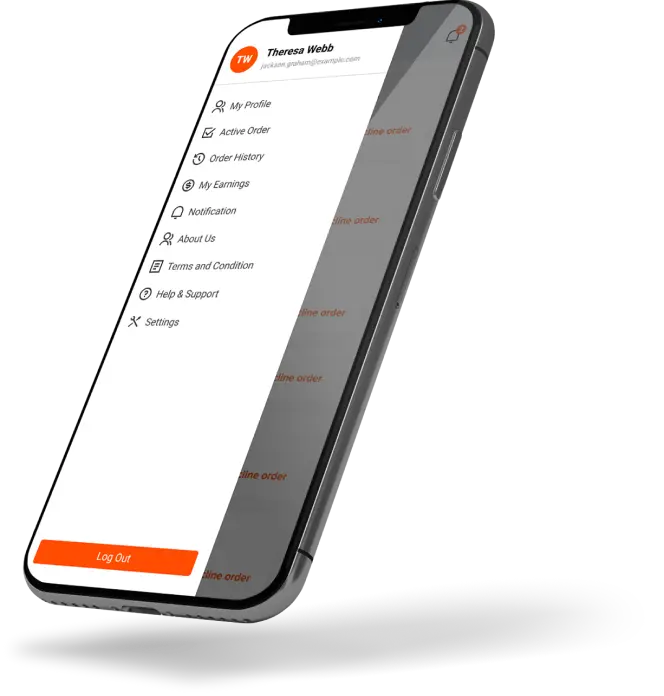
Dashboard

  • Profile setting
  • Your active order status
  • Order History
  • Earning
  • Notifications
  • And other important settings.

iOS POS

Staff can use the iOS application with an iPad device only

Dashboard

The iOS Application Dashboard shows the Active orders, New Sales Registration, the total amount of Stock, Kitchen activities in Kitchen Display, Total Employees, Tip Management & can add new Customers.

The staff can explore and manage the overall iOS application in the same way as they manage the web pos. It signifies that the iOS application’s functions and processes are the same as those of the web pos.

Other Functionalities

  • Drive-In
  • POS
  • Bar
  • Order Management
  • Till Management & so on.

Super Admin

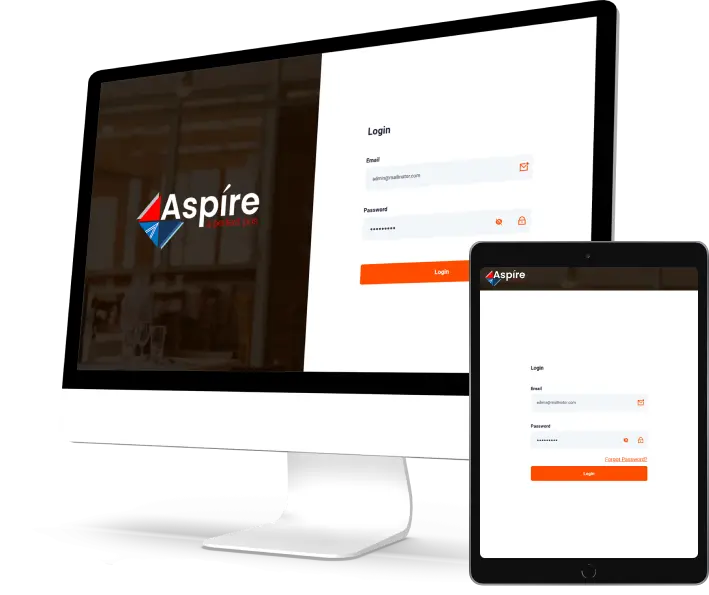
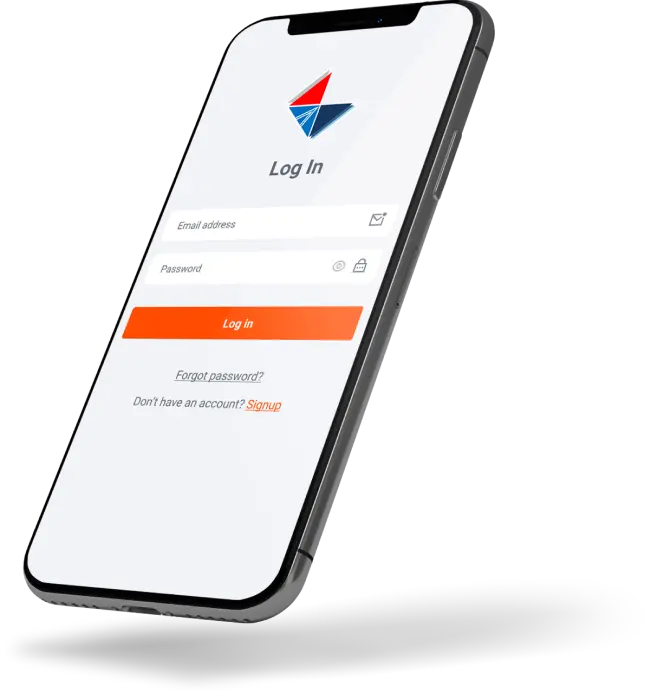
Users can easily access the web application and reach the Super Admin dashboard by logging in.

Login

Users can easily access the web application and reach the Super Admin dashboard by logging in.

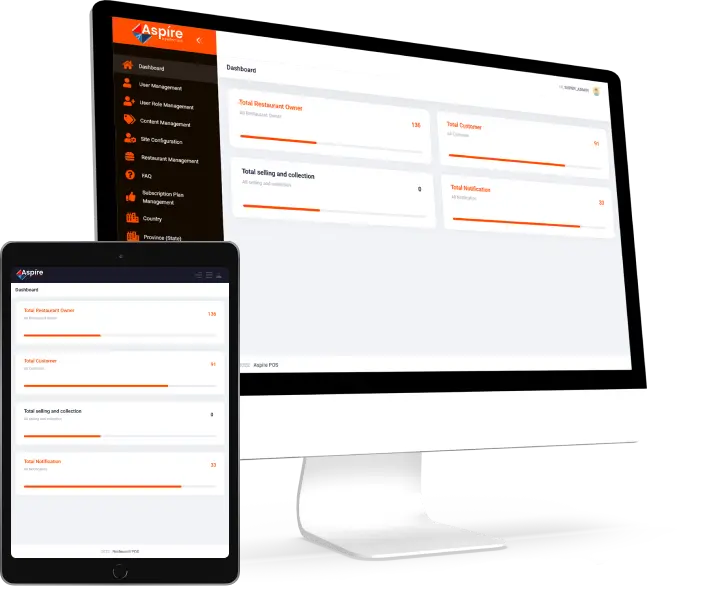
Dashboard

The dashboard of the super admin shows the overall owners, customers, selling & collection as well as notifications on the dashboard. So that the super admin could instantly get all over activities held in the system.

User Role Management

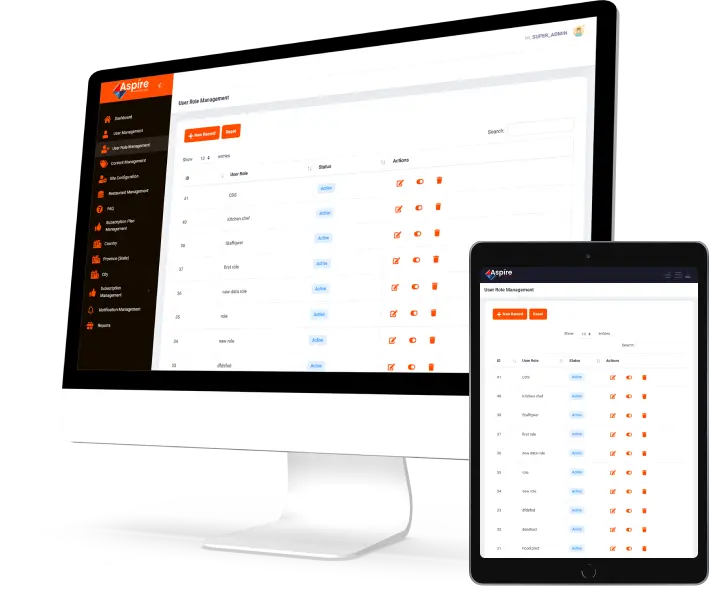
Super Admin has the authority to assign Modules and Actions to specific user roles.

For Example:

This Module has the authority to assign the List, Create, Edit, Delete, Status and View options which can be allowed to the particular user role. This means that Super Admin can choose one of the options listed above to assign to a specific user role.

User Management

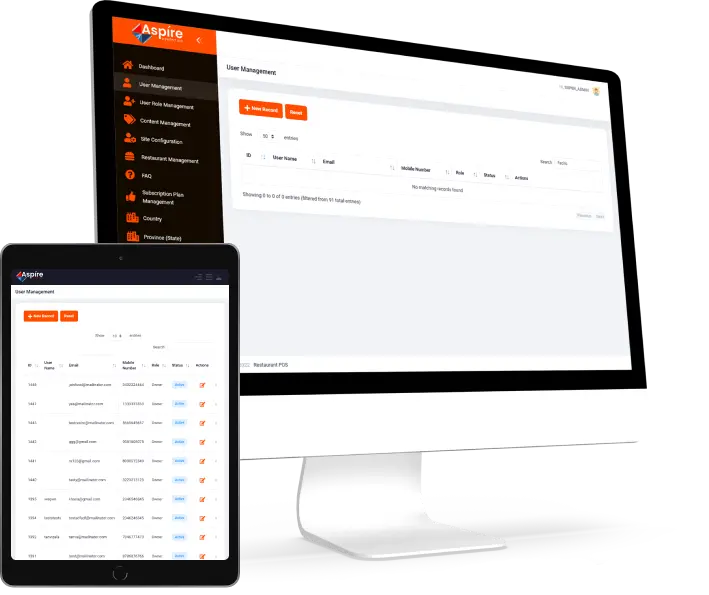
Super Admin can browse the overall active user’s list of applications and websites. Super Admin by-self can add a new user for the admin application.

Super Admin can modify the user details, remove the user, and take appropriate action such as active or inactive the users from the actions section.

Restaurant Management

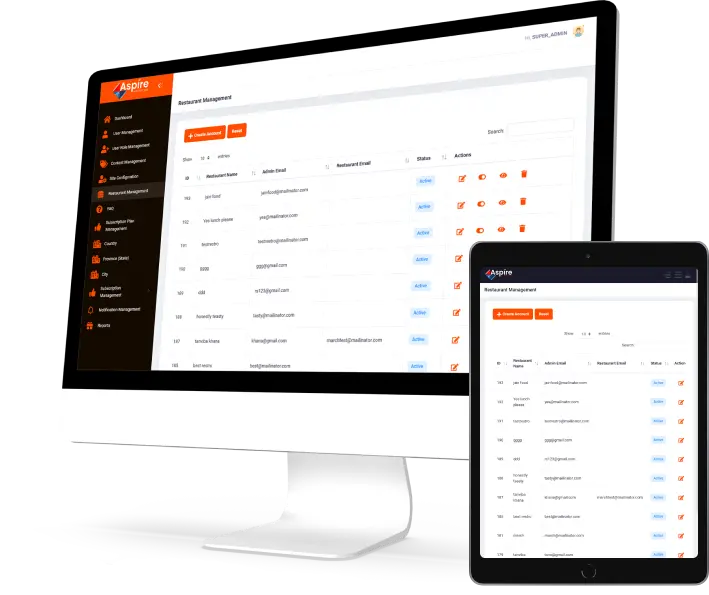
Super Admin can browse the overall restaurant list of applications.Super Admin by-self can add a new restaurant for the application.Super Admin can modify the restaurant details, remove the restaurant, and take appropriate action such as active or inactive the restaurant from the actions section.

Restaurant Plan

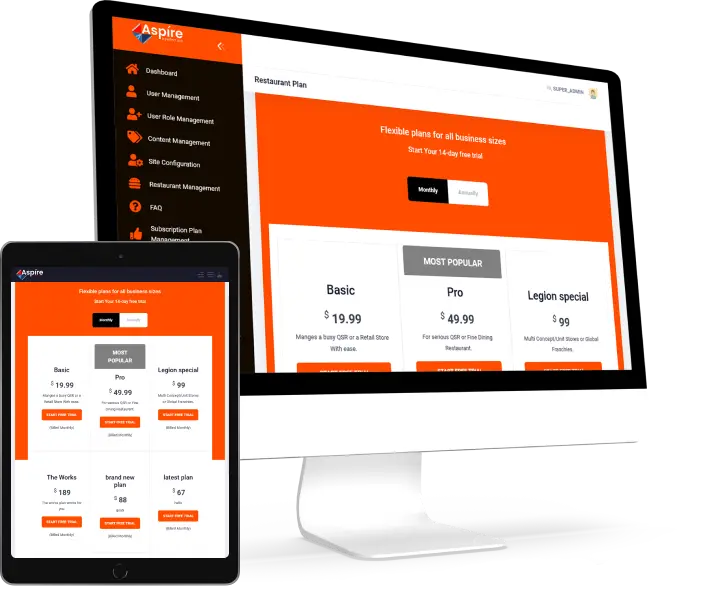
The super admin can create a new restaurant account. After clicking on creating an account, the restaurant plan list will be displayed, from which the most popular plans such as Basic, Pro & Legion Special and so on plans can be selected on a monthly and annual basis.

Subscription Plan Management

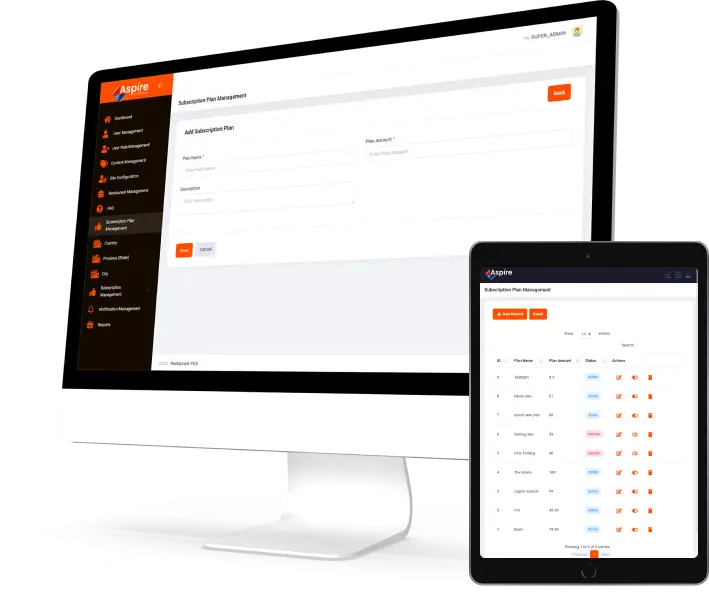
New Subscription Plan can be added by the super admin, in which the system can provide the services to the restaurant as per the plans. The Basic Plan offers the basic allowances to the restaurant. The Pro Plan offers a few more allowances to the restaurant compared to Basic Plan. The Legion Special Plan offers more specific functionalities to the restaurant compared to the basic & pro plan.

Super Admin can modify the subscription plan details, remove the plans, and take appropriate action such as active or inactive the Subscription Plan from the actions section.
In addition to the above-mentioned key functions, super admins can perform various administrative tasks via the menu.

Owner / Staff Admin

Users can easily access the web application and reach the Super Admin dashboard by logging in.

Dashboard

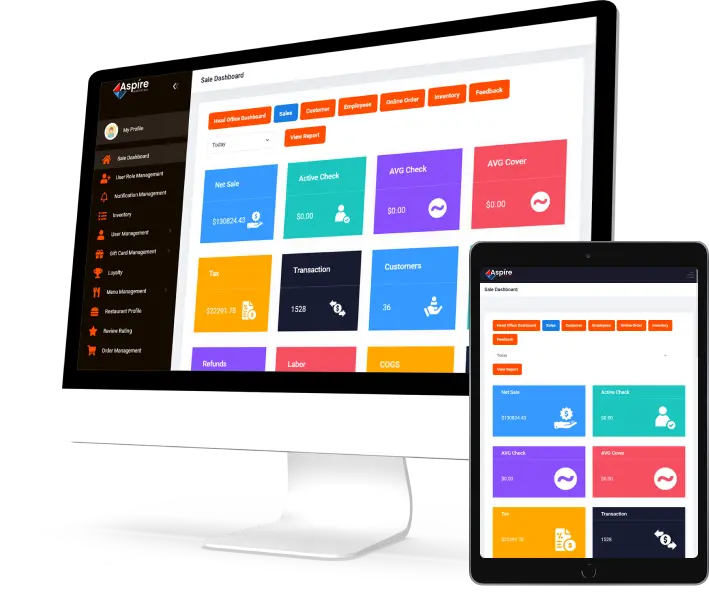
Admin can browse New Sales, Active Checks, AVG Checks & Covers, Payment Related Management, Customers Management, Labors and many other settings.
Admin on the sales dashboard can also browse & keep track of Net Sales By Hour & Sale Per Order Type.
Then they can access the additional dashboards listed below.

  • Head office dashboard
  • Customer
  • Employee
  • Online order
  • Inventory
  • Feedback

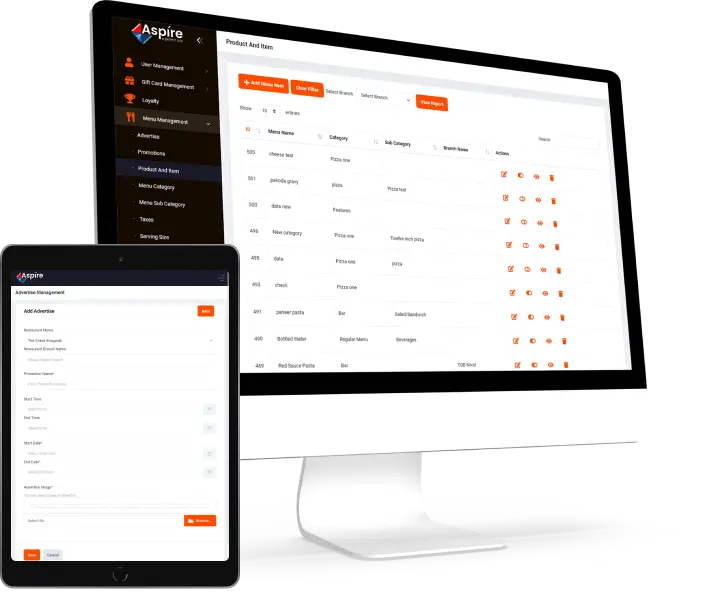
Menu Management

The restaurant owner’s most essential management responsibility is to define the restaurant’s menu. This module assists the owner in adding the Menu that will be displayed on the Restaurant Application.
After the menu list, Admin can define the modifier group management such as maximum & minimum value, modifiers list & priority & it will be visible to application users in the restaurant application.

Following are a few examples of the same: 

  • Advertise
  • Item Details
  • Promotion
  • Discounts & so on
  • Menu Category / Sub Category

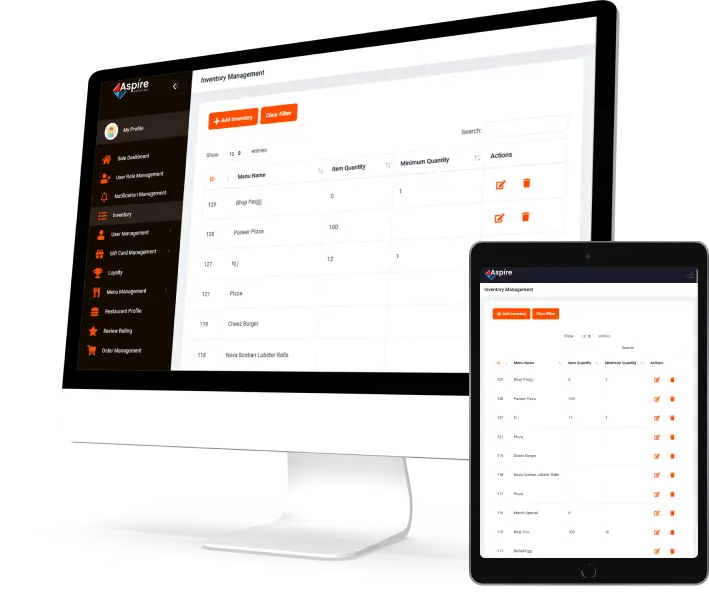
Inventory Management

After menu list management, the same list will be add in inventory management. Admin can add and remove inventory from this module. For an example, the admin can add items for specific restaurants and indicate a quantity alert in the restaurant application for users.

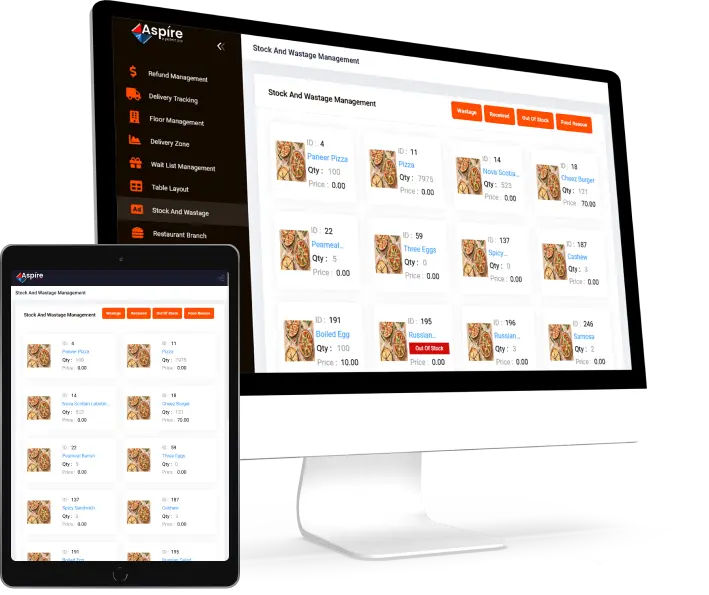
Stock & Wastage Management

The stock and waste management can be operated by the owner admin. There are four separate buttons are available for managing Wastage, Received, Out of Stock and Food Rescue. Where the wastage module manages the wasted item with the reason & quantity and the admin can notify the user that the specific item is out of stock.

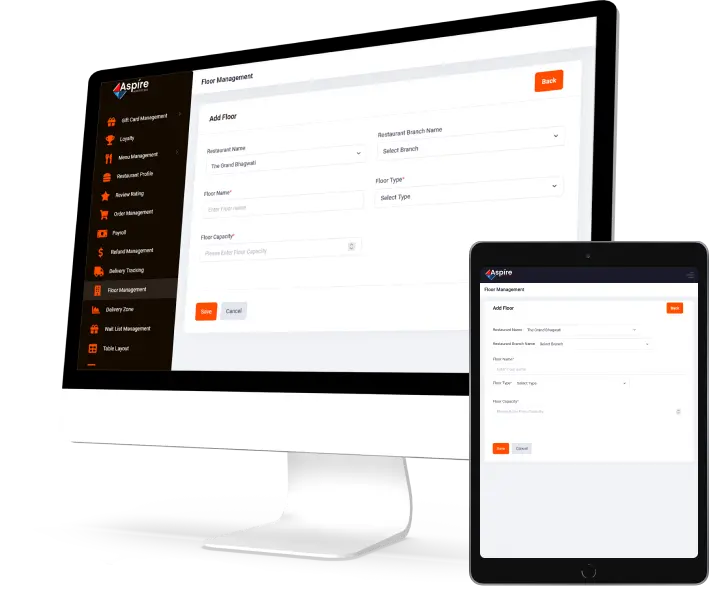
Other Functionalities

Many other features are included in the Restaurant Admin Panel which are listed below:

  • Payroll
  • CSM
  • Floor Management
  • Table Reservation
  • Store Setting
  • Wishlist
  • Gift Cards & so on

Kitchen Display System

Kitchen Display

The Kitchen Display system is only for kitchen staff.
Kitchen staff can check the updated orders with a time limit. Once it is done from the kitchen staff’s side, they can select the below-mentioned options. Kitchen staff can show the order as if it is in Priority or not & displays the order status like Bump ( Order Completed ) & Cooking. The kitchen staff can recall the last bumped order, they can also see all the bumped orders.
Customer Display System

CDS- Customer Display System

A customer Display System (CDS) is a system that displays all order information to customers during checkout.
The cashier has a POS screen where they may add products to the cart and enter customer information. They have the ability to review things, quantities, tax percentages, and discounts. Customers can see products rung up from a customer display system at the same time. Throughout the transaction, it keeps customers updated. They can also engage directly on the screen if the facing display is a touchscreen.

Hardware Integration

When creating POS System, technology companies allow certain components to interact with it. An integrated POS system is a platform that connects sales data to other business tools, allowing them to exchange data in real-time. The following hardware components can be used in conjunction with POS software:

  • Swipe Machine
  • Label Printer
  • Customer Receipt Printer
  • Cash Drawer
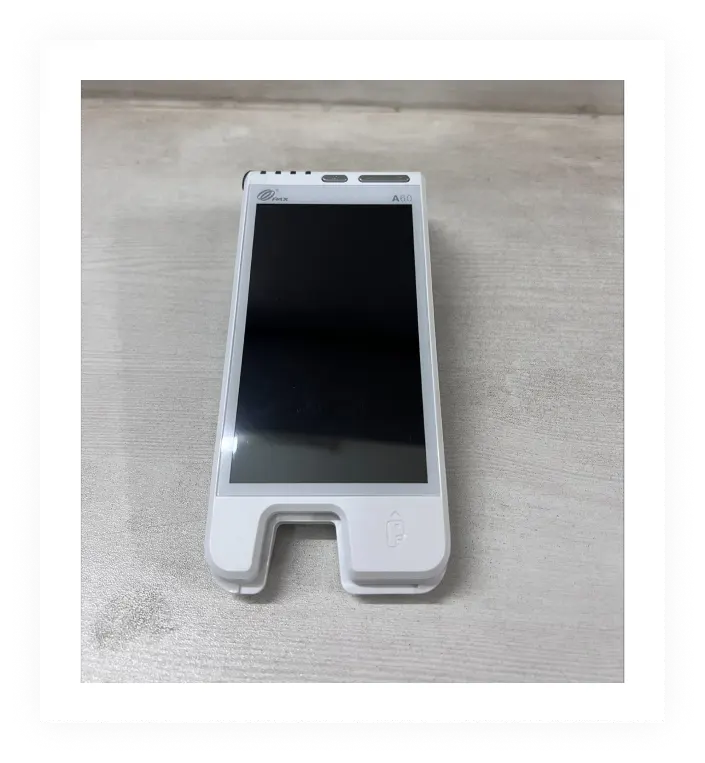
  • PAX Machine
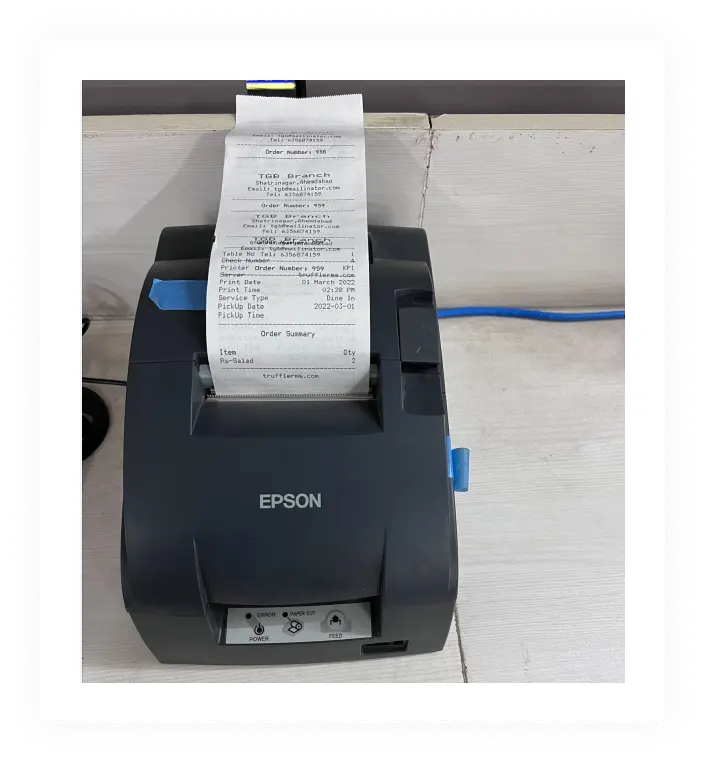
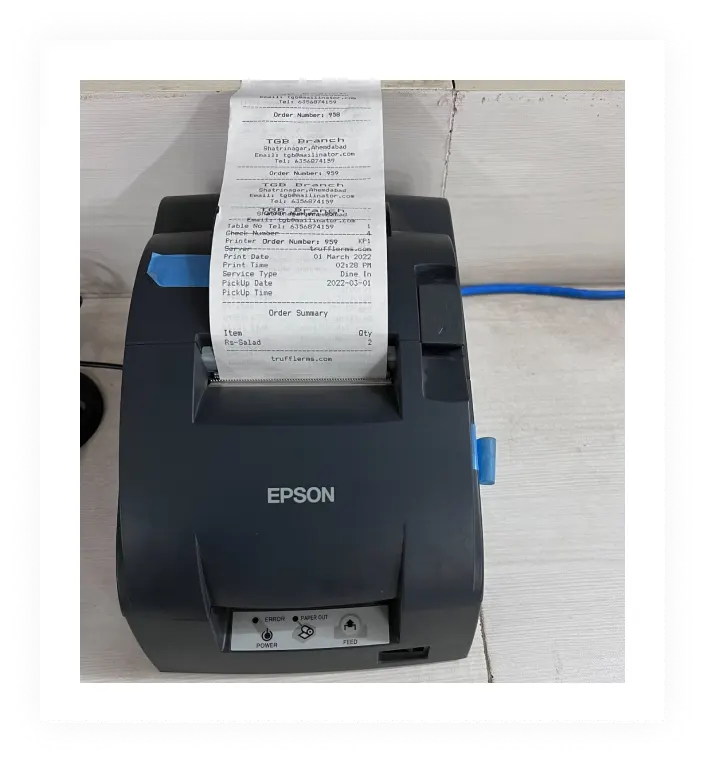
  • Thermal / POS Printer
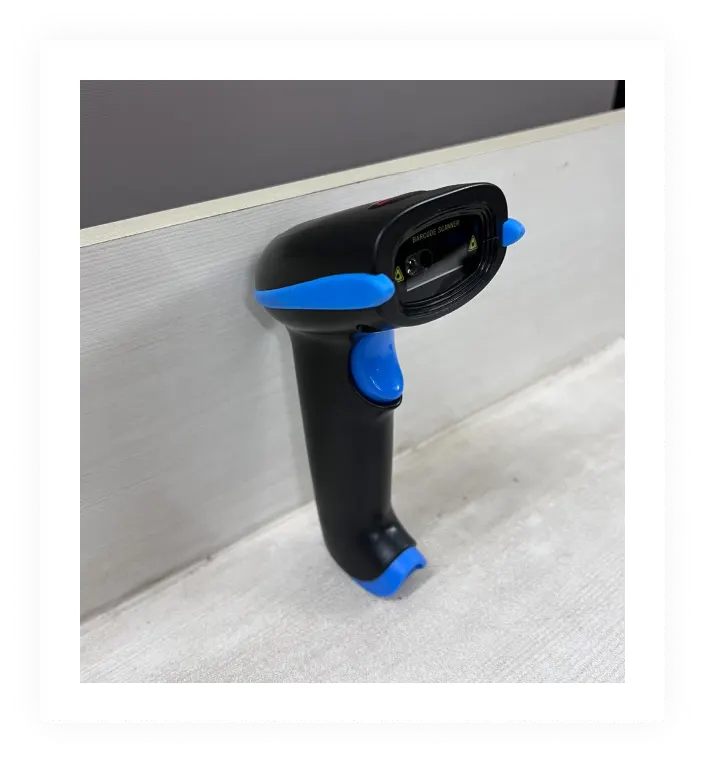
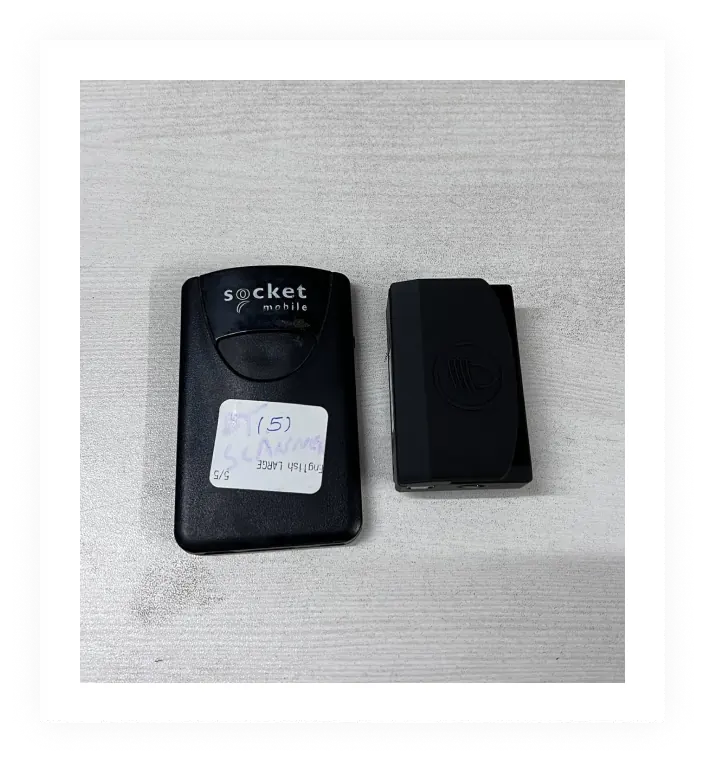
  • Barcode & QR code Scanner
  • Mag Reader / Debit/ Credit Card Reader

Printers such as Thermal Printers, Label Printers, Inkjet Printers can be integrated with our system via Wi-Fi, LAN and USB. Scanners such as Barcode Scanners and QR code scanners can also be integrated with our system via Bluetooth and USB.

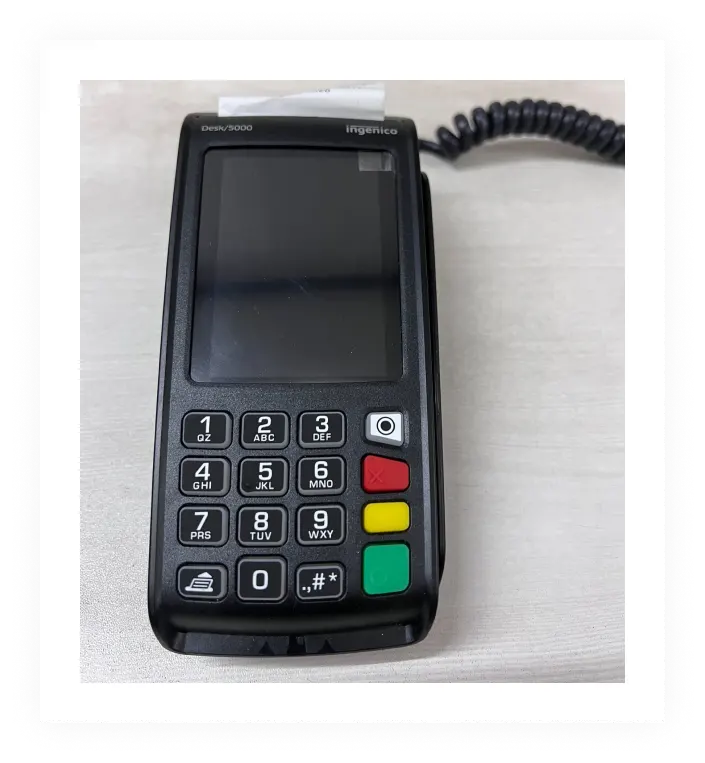
Transaction integration with our system via Mag readers, Pax Machine and Swipe Machine is a key part of any POS System.

Thermal / POS Printer

Thermal POS printers are high-speed printers that generate on-demand receipts. These printers do not use ink cartridges or toners. They employ hot printheads instead of ink to generate imprints on specific thermal labels.

Barcode & QR code Scanner

A barcode reader, also known as a price scanner or point-of-sale (POS) scanner, is a portable or fixed input device that captures and reads data from bar codes.

Mag Reader / Debit/Credit Card Reader

POS Mag Reader, also known as a DC/ CC Card Reader, is hardware that reads the data recorded in the magnetic stripe on the back of a plastic badge.

PAX Machine

PAX Machine technology is the world’s leading developer of safe, fashionable POS payment terminal solutions to boost in-store sales and enhance shopping experiences.

Swipe Machine

With a range of POS terminals, you can accept card, QR, and contactless payments. A point of sale swipe machine is a terminal that allows you to accept credit and debit card payments from your consumers.

Label Printer

They provide on-demand label and barcode printing for a variety of industries, including food service, manufacturing, and pharmacies, as well as ticketing, source labelling, and more.

Customer Receipt Printer

A receipt printer is a device that prints credit card slips or receipts and is frequently used as part of a point-of-sale system. Businesses frequently require this technology to process payments and maintain clear contact with customers following a purchase. Other industries, such as restaurants, may require a receipt printer to complete their jobs, such as managing food orders in the kitchen.

custmer-printer

Cash Drawer

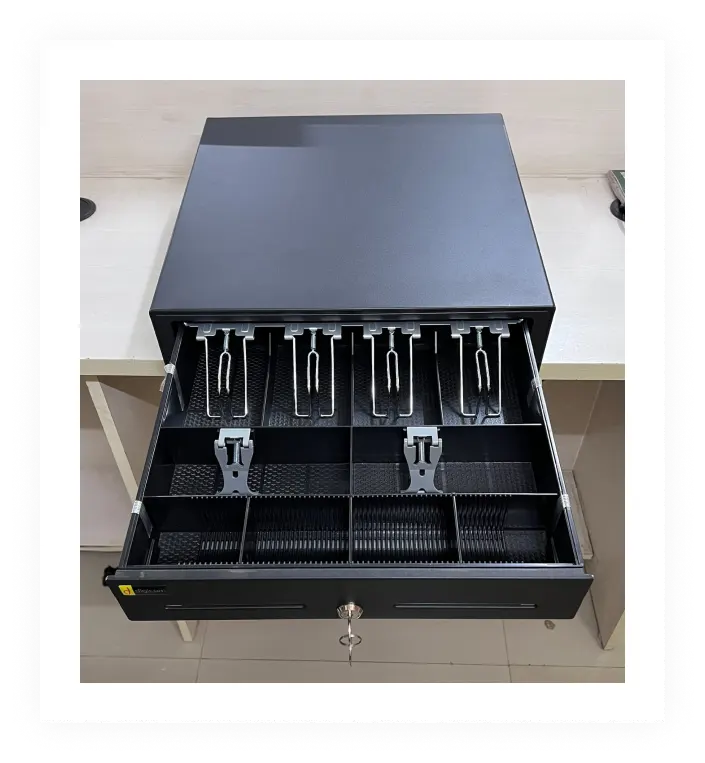
The Cash Drawer is a portion of the Cash Register or Point of Sales Device (POS) that stores credit card receipts, transaction cash, and other documents. The Cash Tray is detachable from the Drawer and is used to store cash. A Cash Drawer is widely used in retail activities, particularly in POS systems.

Support

We provide quality services extending from small enterprises to large businesses, including restaurants, hospitals, shopping malls, online stores with 24 * 7 responsive and technical support.

Technology Stack

Super Admin, Owner Admin, Web Pos, Fronted Website

  • PHP
  • Laravel
  • MySQL
  • Bootstrap
  • jQuery

iPad Pos, iOS User, iOS Driver, CDS ( Customer Display Screen )

  • iOS-Swift
  • API

Android User, Android Driver, KDS ( Kitchen Display Screen )

  • Android Kotlin
  • API

To schedule a demo or business inquiry

Phone / WhatsApp / Signal / Telegram

+1-980-428-9909 / +91-987-979-9459

Apply Now